|
 |
|||||||||||
| |
|
|||||||||||
      |
||||
| . |
|
|
|
Terms & AUP | UCE/SPAM Policy | CGI Abuse Policy | Bandwidth Usage Policy | Payment Policy | Privacy Policy |
|
Getting started with FTP Internet providers such as AOL, Compuserve, and Prodigy may have a built-in FTP interface. If you have a PPP internet account and need an FTP program, you can download software for for either the PC or Mac below. PC users should download WinZip if you do not already have a program to extract .zip files. For the PC, WS_FTP is available for download on a 30-day trial/demo period. Users will be asked to purchase the product after that time. • WS_FTP • Fetch
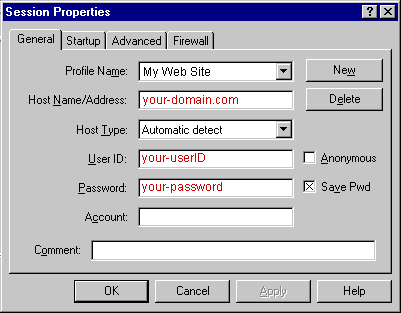
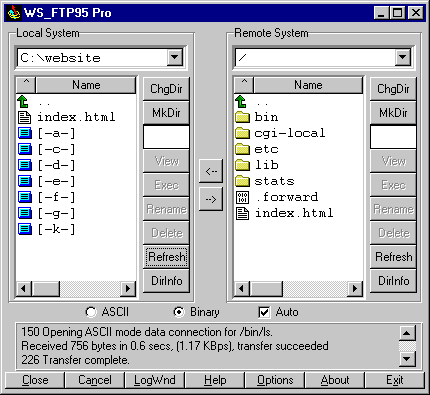
Configuring Your FTP Software • USERID Each time you run WS_FTP the Session Profile window will be displayed. A profile contains the information needed to connect to your web site. Creating a profile now will eliminate the need for you to configure the software each time you wish to connect to the web server via FTP. To create a new profile, click the "New" button and enter a generic profile name at the top of the Session Profile window. Next, enter the userid, password and hostname for your web site as illustrated below. Fig.1 Be sure to select "Auto detect" for the Host Type. (see Fig.1) It is best to select "Save Password" and "Auto Save Config" to maintain these settings for future use. All other fields can be left blank. You are now ready to connect to the web server. Click "Ok" to continue. How to Transfer Files Fig.2 You can transfer files directly to the root level and/or create subdirectories. The only system directory that you may need to use is cgi-bin or mainwebsite_cgi which is where you should upload your own custom CGI scripts. -------------------------------------------------------------------------------- Home PageUNIX: Our servers will look for a "home page" in the following order: index.html, index.htm, index.html Be sure to upload HTML documents and scripts in ASCII mode and images in BINARY mode. To transfer a file to a subdirectory, double-click the appropriate subdirectory to open it before transferring the desired file(s). As soon as a file is uploaded to the web server, it is available for all to see. If, after uploading a file, you are still unable to see the updated file via Netscape, you need to clear both disk and browser cache. This function can be found by selecting Options > Network Preferences in Netscape. Remember that you must first be connected to the internet through your local internet service provider in order to connect to the web server.
Our UNIX/LINUX operating system (Apache) is case sensitive. In other words, the file name "faq.html" is NOT the same as "FAQ.html". If your HTML code references a faq.html, but the actual file name is in uppercase, this will result in a File Not Found error. This applies to directory names as well. To prevent errors, we suggest naming all files in lowercase. Spaces and and special control characters are generally not a good idea. The underscore character ("_") is acceptable. You should avoid special characters ( ! @ # $ % ^ & * : ' ) in file names. We suggest that you keep the length of file names to a minimum. The tilde (~) cannot be used in directory or file names.
-------------------------------------------------------------------------------- Viewing Web Pages in NetscapeWebmasters often modify an HTML document and re-upload it to the server. After returning to their web browser they click RELOAD only to find the original document unchanged. This is a common occurrence for Netscape users and is easily remedied by clearing the browser's disk cache. This can be done in Netscape under Options > Network Preferences. |
 |