|
 |
|||||||||||
| |
|
|||||||||||
      |
||||
| . |
|
|
|
Terms & AUP | UCE/SPAM Policy | CGI Abuse Policy | Bandwidth Usage Policy | Payment Policy | Privacy Policy |
|
Uploading
your files with WS FTP This explains how to setup FTP to upload your files from your computer to your website. We recommend using WS FTP Pro or WS FTP LE (free). Other FTP programs can be used and will follow similar steps as are shown below. We offer instructions specifically for configuring WS FTP LE below. Important: If you are using any FTP Program, be sure you are uploading to the correct directory and that your home page is called index.html. Otherwise, you won't be able to view your pages after you upload them. -Correct Directory to Upload:
/httpdocs/ -Correct Home Page
Name: index.html or index.htm (if index.html has
been deleted) -Correct Host Name: ftp.xyz.com or 216.127.71.57
(use your domain or IP address)
The following information is contained within your account activation notice and is needed to connect you to your website via FTP: Your User Name........(case sensitive) Using WS_FTP Each time you run WS_FTP the Session Profile
window will be displayed. A profile contains the information needed to connect
to your website. Creating a profile now will eliminate the need for you to
configure the software each time you wish to connect to the web server via FTP.
To create a profile, click the "New" button and enter a generic
profile name at the top of the Session Profile window, such as "My
Website." Next, enter your Host Name/Address (yourdomain.com), User ID
(User Name), and Password for your website as illustrated in Figure 1A. 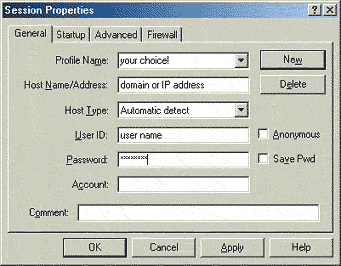 Figure 1A Next you need to click "OK" to
continue. This will connect you to the webserver, where you will connect
directly to the root ("home") directory of your account. WS_FTP will
display a split screen where files on the left-hand side are within your own
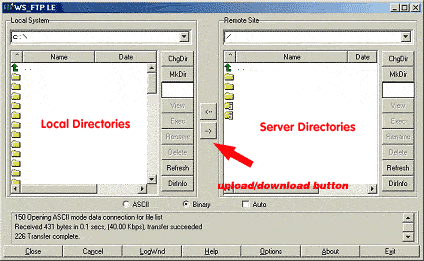
computer. You will see several folders on the right-hand side Figure 1B.
Double click on httpdocs to get to your web directory. This is where all your files will be downloaded, and/or you will create subdirectories. The one unique system directory that you may want to use is cgi-bin; this directory is reserved for custom Perl/CGI scripts. To make your home page load automatically, name the HTML document "index.html" in lowercase and upload it to the /httpdocs directory of your account. If you access your site (www.yourdomain.com) and see a page that says, "This is homepage ...." that means you have not uploaded your "index.html" file correctly. To upload a file or files, simply highlight the file(s) on the left and click the right arrow button (->) in the center of the window. Be sure to upload HTML documents and scripts in ASCII mode and images in Binary mode. To transfer a file to a subdirectory, double-click the appropriate subdirectory to open it before transferring the desired file(s). To create a new directory, click on the MkDir button when you are inside the httpdocs directory or subdirectory. As soon as a file is uploaded to the web
server, it is available for all to see. If, after uploading a file, you are
still unable to see the updated file via your browser, try hitting the
"Refresh" or "Reload" button. If that fails, you need to
clear both disk and browser cache. This function can be found by selecting Options
- Network Preferences in Netscape, and Tools - Internet Options
in Internet Explorer. Remember that you must first be connected to the Internet
through your local Internet service provider in order to connect to the web
server. IMPORTANT NOTES:
|
 |