How to setup a new MySQL Database?
1. Load your Plesk Control
Panel.
This can normally be found at https://www.youdomain.com:8443
if you did not know already.
2. Login to the Plesk Control
Panel with your username and password
3. Click the 'Databases'
button once you have logged in.
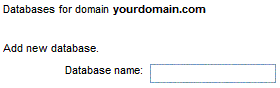
4. You should now see this:
5. In the box next to 'Database name:' enter
the name you wish to use for your database. This can be anything you like, so
long as you do not use _ (underscores) in your DB name.
If you get an error about the database name
already existing, you need to try another unique database name, as someone on
the server is using the one you picked. Don't forget, you can put anything you
like though.
6. Click the 'Add' button to the right of the
box.
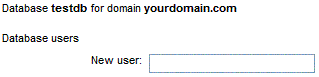
7. On the next page, you should see something
similar to below:
8. Enter the username you would like to use in
the box to the right of 'New user:' that you would like to use for accessing the
database (and for your scripts to connect to the database)
If you get an error about the username already
existing, you need to try another unique username, as someone on the server is
using the one you picked. Don't forget, you can put anything you like though.
9. Click the 'Add' button to the right of the
box
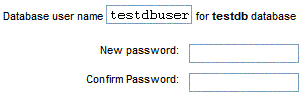
10. You should now see this on your screen:
11. Enter the password you would like to use in
the box to the right of 'New password:' that you would like to use for accessing
the database (and for your scripts to connect to the database). Confirm it again
in the second box.
The password should be between 5 - 14
characters, and only contain A -Z and 0 -9.
12. Click the 'Update' button to the right of
the box
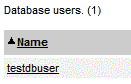
13. You should now see the list of users for
your db:
14. Click phpMyAdmin button to open phpMyAdmin
and edit your new database, or click 'Up Level' to return to the 'Database'
section, and 'Up Level' once again to return to main menu.
| |
 |
or
|
 |