How to restore your MySQL database?
You should
ALWAYS keep regular backups of your MySQL database
Please refer to the MySQL backup FAQ if you are unsure on how to backup |
| Note: You must
have a created backup .SQL file to complete this procedure |
1. Load your
Plesk Control Panel.
This can normally be found at https://www.youdomain.com:8443
if you did not know already.
2. Login to the Plesk Control
Panel with your username and password
3. Click the 'Databases'
button once you have logged in.
4. You should now see this:
If you dont see your datanase in the list, you
may need to recreate it. See "How to setup a new MySQL database" FAQ
if you need help on doing this.
6. Click the 'phpMyAdmin' button on the right
of the next screen
7. You should now have a window pop-up loading
phpMyAdmin
8. Click your database name in the left coloumn
(in this case, 'testdb')
9. On the right, you should have this text box:
10. Open your saved .SQL file, with an editor
such as Notepad
11. Copy the contents of the .SQL file into the
text box
12. Click 'Go'
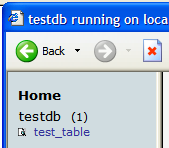
13. You should now hopefully see 'Your
SQL-query has been executed successfully', and have your tables recreated on the
left:
You have now sucessfully restored your MySQL
database.