|
Configuring Eudora
Eudora is a very popular and powerful e-mail
client developed by Qualcomm,
Inc. Qualcomm offers three versions of this software: a free limited-feature
version, a paid commercial version, and a free sponsored version. Eudora is
available for download at http://www.eudora.com/.
Creating a New Personality
To create a new personality (alternate email
account), do the following:
- From the Tools menu, choose Personalities,
or click the Personalities window’s tab if it is a deselected window in a
tabbed group. The Personalities window appears.
- Right-click anywhere inside the
Personalities window to display the drop-down context menu.
- From the context menu, choose New. The first
New Account Wizard window, Account Settings, appears.
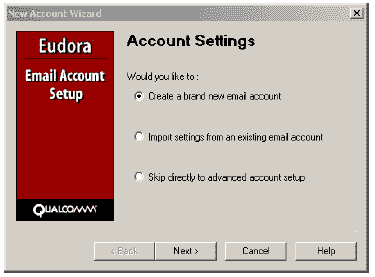
- Select Create a brand new email account and
click Next. The next New Account Wizard window, Personality Name, appears.
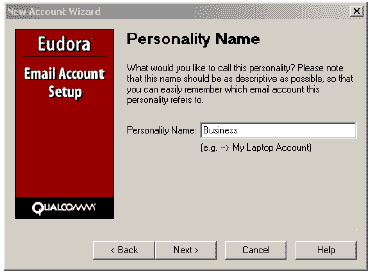
- In the Personality Name text box, enter the
name to identify this Personality only, for example “Business.” Click
Next and the next New Account Wizard window, Personal Information, appears.
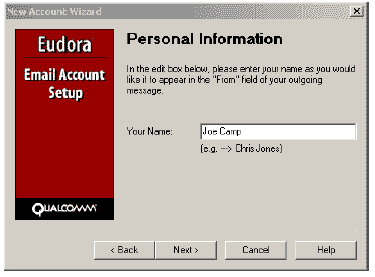
- In the Your Name text box, enter your name.
Click Next and the next New Account Wizard window, E-mail Address, appears.
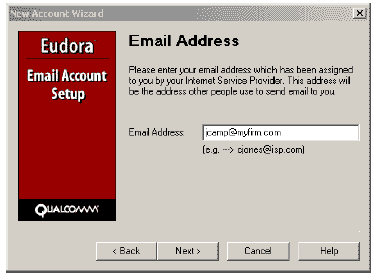
- In the E-mail Address text box, enter your
full email address and click Next. The next New Account Wizard window, Login
Name, appears.
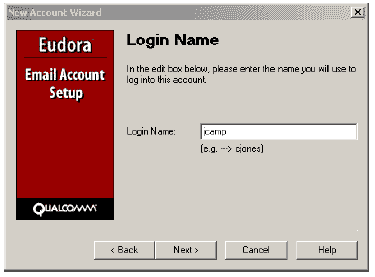
- In the Login Name text box, enter your login
name. This is the UserName associated with the POP account. Click Next and
the next New Account Wizard window, Incoming Email Server, appears.

- In the Incoming Server text box, enter yourdomain.com
(where "yourdomain.com" is the name of your domain.)
- At the bottom of this window, select the
type of incoming server you will be using, POP or IMAP. Click Next and the
next New Account Wizard window, Outgoing email Server, appears.

- In the Outgoing Server text box, enter yourdomain.com
(where "yourdomain.com" is the name of your domain) or use your
local ISP's outgoing SMTP mail server. Uncheck the Allow authentication box.
Click Next and the Success window appears.
- Click Finish. You have successfully entered
your new personality. Your new personality will be checking mail whenever
you retrieve mail.
Using SSL for Your Personalities
Our servers do not currently support SSL for
e-mail. SSL is enabled by default in Eudora, and will cause an error message to
be displayed unless you disable it. Be sure that SSL is not enabled for your
account by following this procedure:
- From the Tools menu, choose Personalities.
The Personalities window appears.
- For an existing personality, highlight the
personality and choose Properties from the context menu. For a new
personality, right-click anywhere in the Personalities window to display the
context menu. Choose New and then choose Skip directly to advanced account
setup. The Account Settings dialog appears.
- Choose the Generic Properties tab. In the
Secure Sockets when Sending field, click the down arrow to display the
drop-down menu and select Never.
- Choose Incoming Mail tab. In the Secure
Sockets when Receiving field, click the down arrow to display the drop-down
menu and select Never.
If you're experiencing problems sending or
receiving e-mail, the information contained in our E-Mail
Troubleshooter may help diagnose and solve the problem.
|


